
Working with documents in Microsoft Word 365 becomes much easier when you rely on keyboard shortcuts especially if you’re using screen readers like JAWS or NVDA. Instead of navigating visually, you can move faster, stay focused, and complete tasks smoothly using simple key combinations.
This guide walks you through essential document management tasks so you can work more efficiently and confidently.
Starting a New Document in Word 365
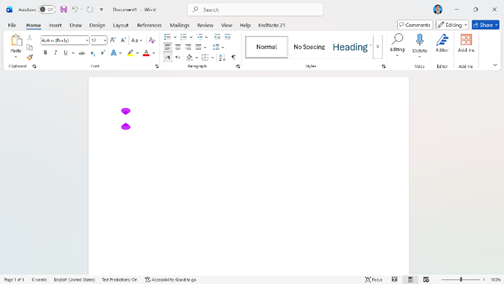
When you open Word, a blank document is created automatically. It is usually named Document 1. To hear the current document name using your screen reader:
- Press Insert + T
- You will hear something like: “Document 1 – Word”
This is very helpful when you have multiple files open and want to confirm where you are.
Create a New Blank Document
To open a new document:
Press Ctrl + N
Each new file will be named in sequence:
- Document 2
- Document 3
- and so on
This keeps your workflow organized without needing to check visually.
If you want to understand how Word opens and behaves at startup, read this guide:
Backstage View
Switching Between Open Documents
When working on multiple documents, switching quickly is essential.
Move Forward Between Files
Press Ctrl + F6
Move Backward Between Files
Press Ctrl + Shift + F6
These shortcuts allow you to move between documents without leaving Microsoft Word. This helps you stay focused and avoids switching to other apps accidentally.
To better understand navigation inside Word, check:
Using Ribbons in Word 365 with JAWS/NVDA
Closing Documents the Right Way
Understanding how closing works prevents accidental data loss.
Close Only the Current Document
Press Ctrl + F4
This closes the active file but keeps Word running.
Close Word Completely
Press Alt + F4
If only one document is open, this will close both the document and the Word application.
If multiple documents are open, it behaves like closing one file at a time.
Closing All Documents at Once
If you want to close everything quickly:
Press Alt + F, then press X
If there are unsaved changes, Word will ask whether you want to save them.
- Press Enter to save
- Press Alt + N to discard changes
Always listen carefully to your screen reader before making a choice.
Using Word Templates for Faster Work
Instead of starting from scratch, you can use built-in templates like:
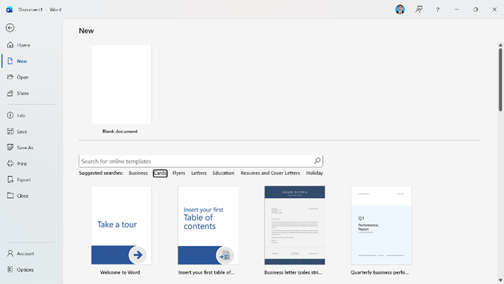
- Reports
- Invitations
- Resumes
Steps to Use Templates
- Press Alt + F
- Press N (New)
- Use Tab to move on templets area
- Use arrow keys to browse templates
- Press Enter on “Create”
After opening a template:
- Remove placeholder text
- Add your own content
Templates save time and give your document a professional structure.
Bonus Tip: Improve Text Handling
Once your document is ready, managing text efficiently is equally important.
Learn text selection techniques here:
Select Text in Word 365
Final Thoughts
Managing documents in Word 365 with a screen reader becomes simple once you learn the right shortcuts. From creating files to switching between them and closing everything safely, these small techniques can greatly improve your productivity.
Practice these shortcuts regularly, and soon they will become second nature.